Thursday, October 28, 2010

Unix File-Systems: why EXT4?

Ext4 is here since the Linux 2.6.28 kernel, and henceforth some of the most popular Linux distributions have been adopting it. In some cases, e.g. Ubuntu, it's actually the default file system.
It it really worth to abandon the very well known EXT3 or ReiserFS, which have proven its value for several years now?

Just for minimal information, EXT4 is mostly like an update to EXT3, not really a revolution, which has several advantages over it and is backwards compatible. In the mainline of the improvements is the use of extents instead of block mapping like XFS or Apple HFS+ already do, which is designed to improve performance with the creation of larger files, and will reduce fragmentation on the hard disk. Furthermore, EXT4 features delayed allocation, persistent pre-allocation, and journal check summing.

For a clearer idea, here you find some benchmark results from Phoronix
Ok, one can see that the large file creation really benefits from extents with a significant 50% margin.

For sequential read the performance gain is also very significant, although XFS performs a little bit better. EXT3 and ReiserFS are outperformed by more than 55%

And if you had doubts between EXT4 and XFS, this last test shows how the filesystems perform against a server disk activity simulation. EXT4 performs 3x better than XFS and almost 100% better than the usual competitors.

So, if you are or ever been in doubt, I assume you have good reasons to not think again in the same issue. EXT4 is there and is actually faster for most disk usage patterns.

Tuesday, September 28, 2010

The device mess!

Phones, Smartphones, PDAs, MIDs, UMPCs, Tablets/Pads, Netbooks, Laptops, PCs... the real device mess has come and there is options for every taste, for every pocket and eye.

Notably the whole new terms for devices between Phones and PCs reach the maximum confusion, and there is no clear border in the definitions, so they're likely to overlap. So let's see...

Displays:
Featuring anything from from 4 to 12+ inches, they can be non-touch, or touch. Then the touch ones can be Capacitive, Resistive, Surface Acoustic Wave and a bunch of other strange technologies. From these the Resistive is pretty popular since it supports for multi-touch screens. Check Wikipedia

CPU
powered by a x86, ARM or imitation chip, you can also find of everything that will influence, of course, the performance of your device but also the battery life, the Operating System and all the applications to be run. Nevertheless here a new story begins, which we extend next.

Operating System
Let's present the traditional scenario first:
-Small device -> ARM processor -> proprietary OS / Chrome / Windows CE
-Larger/Work device -> x86 processor -> Windows / Linux
.
If you still believe it, then forget it. Here the things get really complicated!
The latest days I've seen of everything, with a thousand chinese companies creating of everything with every kind of processor, and of course every kind of O.S. running on it.

Some curiosities:
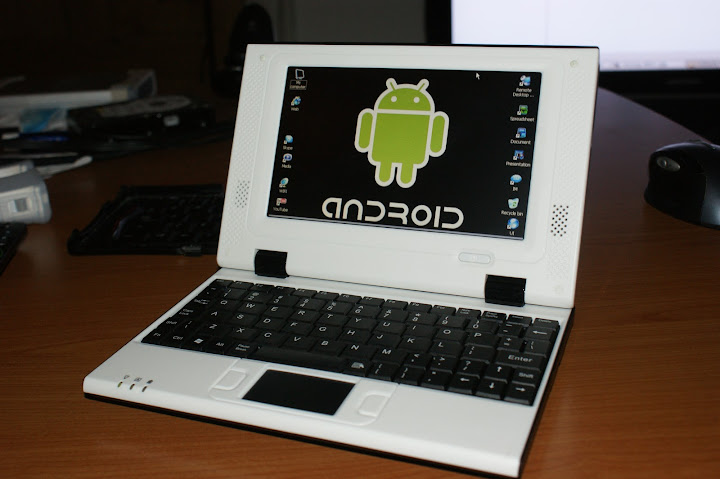
A cheap laptor with an ARM processor running Android.
.
It's not Intel, it's not AMD, neither VIA... It's Loongson! A x86 compatible CPU being developed in China!

And... 5 inch tablet (therefore Ultra Mobile PC - UMPC), which throttles a 1,1GHz Atom

In the end, can can be loaded with all kind of stuff... This is my personal favorite part!
Gadgets
Connectivity: USBs, RS232, WiFi 802.11 a/b/g/n/XXX, ITU GPRS/EDGE/3G/HSDPA/UMTS/HSPA+, Bluetooth, even WiMAX, IRDA, Ethernet...
Extras: GPS, 1D/2D/Barcode reader, RFID and whatever you can imagine to be integrated...

And of course, some resistive versions intended for the professional use, that simply would cost as many times as the amount of plastic around..

Tuesday, June 22, 2010

Resume your remote SSH sessions

How many of us already suffered from a network failure while working remotely over SSH? I'd bet most of us, and isn't that frustating that you just lose all the unsaved changes? It's gone and there's no way you can get back to your session.


Although this is the very common situation, fortunately there is a very simple way you can work over a persistent SSH session.
All you have to do is to create a session holder on the server, which you can do with an utility like "screen" [http://www.gnu.org/software/screen/]

Screnn works server side so it's completely independent on the client software you use for the remote connection.

The steps are just:
  1. Remote login (normally) to your server, from windows, linux, whatever client...
  2. run "screen" (make sure it's installed on the server)
You are now working on a server session. To test it, put something to run, e.g. "top" and close the window.
"Oh God, is my session dead?" - not really. Login again and type "screen -ls". You will hopefully see your sessions, like,

There are screens on:

2477.pts-0.server1 (Detached)
2522.pts-0.server1 (Detached)
2 Sockets in /var/run/screen/S-root.


To reconnect to one of them use:

screen -r 2477.pts-0.server1

There are several options to contol the server session,. Below is a short list of the most important ones:
  • Ctrl a c - Creates a new screen session so that you can use more than one screen session at once.
  • Ctrl a n - Switches to the next screen session (if you use more than one).
  • Ctrl a p - Switches to the previous screen session (if you use more than one).
  • Ctrl a d - Detaches a screen session (without killing the processes in it - they continue).

To close a screen session where all tasks are finished you can type Ctrl-D

Wednesday, March 24, 2010

VirtualBox Raw partition - Windows Host Linux Guest

Some virtualization systems have recently been able to handle real hard disk partitions. This is specially useful if you have a dual boot system (lets say Windows and Linux) but you frequently have to access a system while running the other. Then the solution is to use a virtual machine with your real OS installation.

In my case I'm accessing Linux from my Windows XP installation using VirtualBox. For the other way round you can easily find several how-to's around.


The most important and not obvious step is how to create the mapping virtual disk.

First you'll need to have the boot sector of your Linux Machine accessible. To create it use dd to extract the first 512 bytes from your bootable Linux partition. (In this case I have grub installed on it, NOT in the MBR).

After, please find the VirtualBox name of your partition.
  • VBoxManage.exe internalcommands listpartitions -rawdisk \\.\PhysicalDrive0
Switch PhysicalDrive0 to PhysicalDrive1, PhysicalDrive2... as needed.

You should see something like this:

Number Type StartCHS EndCHS Size (MiB) Start (Sect)
1    0x07  0   /32 /33  13  /163/19           100         2048
2    0x07  13  /163/20  1023/239/63         20480       206848
3    0x07  1023/239/63  1023/239/63         26410     42149888
4    0x83  1023/239/63  1023/239/63         10239     96238800


To create the VirtualBox disk issue the command:

  • VBoxManage.exe internalcommands createrawvmdk -filename e:\vm\ubunturaw.vmdk -rawdisk \\.\PhysicalDrive0 -register -partitions 4 -mbr c:\linux.bin

-filename is the VirtualDisk name (may include path)
-register tells VirtualBox to register the virtual disk in the Virtual Media Manager
-partitions specifies which partition is to be mapped. Make sure it's your linux partition. If you don't specify VirtualBox will try to map the whole Disk, which can corrupt your data, besides not accepting your mbr file.
-mbr Specifies the master boot record for your system (required)

Now just create a common virtual machine with the recently created disk!

Tuesday, March 2, 2010

NIC Bonding/Teaming

NIC binding/teaming is about creating a virtual network device that can make use of several real NICs to achieve higher throughput and/or fault-tolerance.

This means both will have the same MAC address. Depending on the protocol, you might not even have to change router configuration, and several Linux distributions have good support on that.

Here I provide links to some how-to’s on enabing NIC bonding for some of the most popular Linux distributions. Windows users don’t have the same luck, unless the NIC manufacturer had provided some utility for this specific purpose.

In all the cases an additional kernel module has to be loaded (bonding). Debian systems make use of the ifenslave utility.

RedHat Linux Enterprise 4
http://www.cyberciti.biz/tips/linux-bond-or-team-multiple-network-interfaces-nic-into-single-interface.html

Debian
http://www.5dollarwhitebox.org/wiki/index.php/Howtos_NIC_Bonding_Debian
http://www.howtoforge.com/nic-bonding-on-debian-lenny

Ubuntu
https://help.ubuntu.com/community/UbuntuBonding

Thursday, January 14, 2010

HP zt3000 / Compaq nx7000 and Mobility Radeon 9200

It seems like many people are having a lot of problems getting their 9200 video drivers to work on their zt3000 and nx7000 laptops.

Starting around Catalyst 5.6, something changed in the original ATI driver code that stopped working with the laptop's LCD screen.
The newer drivers actually work but the laptop LCD either has a strange color behavior, or it just shows nothing (like in my case).

Solution? Just use a modded Catalyst 5.6 or earlier.

This should be sufficient for most zt3000/nx7000 users... if they're running on XP. If you're trying to run Vista, you can still install them by downloaded the modded drivers install package then enabling Windows XP SP2 compatibility mode.

You can also try Omega Catalyst drivers.

Read more: HP zt3000 / Compaq nx7000 and Mobility 9200

Tuesday, December 15, 2009

Home SVN Server - Authentication with mod_dav_svn


Since nowadays broadband is everywhere, why not installing your own svn server? Unlimited size, private data and ultra-fast access when you’re working locally are some of the advantages.

This tiny overview is not going under much detail about installing the system, instead it reminds you (and myself) some post-installation steps you should not forget in order everything to work smoothly, namely access via apache server (mod_dav_svn).

First: Install the svn package (in ubuntu the package “subversion” comes already with repository administration commands)

Second: Install the libapache2-svn package with apt-get.

Third: Config mod_dav_svn. Go to /etc/apache2/mods-available and find dav_svn.load. Check inside if both apache modules are being loaded (i.e. both lines are uncommented).

Then open dav_svn.conf and you have to configure certain parameters, like the hard disk location where your svn repository will actually reside. Luckily this file is already well documented, but the common settings are as follow:

<Location /svn> –> Tells apache the url it should reserve for SVN. In this case http://your_server/svn will point to our repository, which you use with your svn client.

SVNParentPath /var/svn –> Tells Apache/mod_dav where all svn repositories reside.

Create the repository location and give it permissions.
(remember, when you commit apache will WRITE information for you, so it must have permission to do so)
> mkdir /var/svn
> chown www-data /var/svn –R

No go and create your first repo!
>svnadmin create /var/svn/

The following steps are needed if you want apache to require authentication when users try to commit and or read.

Back to dav_svn.conf

First tell apache “Hey! I want some authentication, and I’ll store users information on … (the file path)”:
AuthType Basic
AuthName "Subversion Repository"
AuthUserFile /etc/apache2/dav_svn.passwd

This will require authentication for every access. If you want to make it public readable add this trick:

<LimitExcept GET PROPFIND OPTIONS REPORT>
Require valid-user
</LimitExcept>

Now just create your first user:
> htpasswd -c /etc/apache2/dav_svn.passwd your_first_svn_user

To add more users you just skip the –c (create) parameter.

Monday, December 7, 2009

Public DNS server from google

Google seems to be broadening their service provisioning with the introduction of a “Public DNS service”.

If it’s true DNS plays an essential role in the internet, it’s also true it introduces already a significant overhead. Google considers the service can be improved and therefore launches its approach, which they claim it’s faster, more secure and needs no redirection (less resolving jumps).
Details on performance are available at the google page: http://code.google.com/speed/public-dns/docs/performance.html

I’m temped to give it a try. Free, simple to try (and remember). Just point your dns server addresses to 8.8.8.8 and 8.8.4.4. Feedback is encouraged! :)

Public page: http://code.google.com/speed/public-dns/

Wednesday, November 25, 2009

Why store ISOs if you can Mount zip?

Have you ever stored CD images (usually .iso files) on a DVD or hard-drive, just to get rid of the old & slow media? Then you could, of course, mount the image to a virtual drive and you’re done!

Have you ever thought “damn, this ISO could be smaller…” or “this whole bunch of files were better in a single file. Do I have to create an ISO?”

Well, the actual question you’d like to ask is “Can I mount a standard format compressed archive file?” What about zip? Yes, mount zip would be great!
And you know what? It’s as straight-forward as downloading a small piece of software for that.

There’s winMount (commercial), but for free we can get Prismo File Mount: http://www.pismotechnic.com/download/
It supports ISO, ZIP, CISO, CFS, ISZ, DAA… etc. Probably enough for your daily tasks… :)

Monday, November 16, 2009

Linux monitor file updates

This is a very handy command, mostly if you are doing some system changes and you need to monitor a log file.

Like me, many people know it's possible but have forgotten how. Simply use tail!

tail –f <file>

For those who didn't know, it checks for new lines in the file and prints them to standard output.
Nice, isn't it?

Sunday, November 15, 2009

Deluge 1.2 on Ubuntu Hardy

Torrent clients are must-have applications nowadays. There are dozens of clients around, but the average user will look for a simple yet fast and intuitive one.

As a Window user I’m a fan of uTorrent, which is well known by its quality and simplicity. Unfortunately, when it comes to Linux, there’s no uTorrent. After following some discussions between torrent clients for Ubuntu1, I finally decided going to Deluge. It’s said to be fast, simple, good-looking and comes with a web interface.

Those who read previous articles may have noticed I’m building a minimal server system using Ubuntu Hardy (8.04) and Deluge characteristics were about the requirements I had in mind, principally the web-interface for controlling it remotely.

So I went straight to the shell and apt-get install deluge… What?? it doesn’t exist?
A little search through packages.ubuntu.com revealed it’s been only available from Ubuntu Jaunty afterwards.
Further looking into Deluge doc, I could find they provide it via a third party repository, at launchpad:

deb http://ppa.launchpad.net/deluge-team/ubuntu <distribution> main universe

working for distribution feisty, gutsy, hardy, intrepid or jaunty. Good! :)

The steps are:

  1. Add the line to /etc/apt/sources.list, replacing <distribution> with hardy or one of the other dists.
  2. apt-get update. An error will raise saying some “signatures couldn't be verified”. Please copy the key at the end of this line to be used in the next step2
  3. Add the key to apt with the command:
    apt-key adv --keyserver keyserver.ubuntu.com --recv-keys <key_here>
  4. apt-get update. Now everything should go fine.
  5. Now the nice command. apt-get install deluge

You may prefer to install just the daemon and then the web interface. Go for the deluge-core and deluge-web packages.

It’s also a good idea to create a rc startup script so deluge starts automatically at system startup. Luckily someone already thought about that. Give a look at:http://dev.deluge-torrent.info/wiki/UserGuide/InitScript

And that’s it!

1- http://ubuntuforums.org/showthread.php?t=213713

2- https://help.launchpad.net/Packaging/PPA/InstallingSoftware

Tuesday, November 10, 2009

Dyndns in Ubuntu/Debian

In Debian/Ubuntu you can install an IP updater via apt:
sudo apt-get install ipcheck

For dyndns use the following syntax:
ipcheck -r checkip.dyndns.org:8245 \
$USERNAME $PASSWORD $HOSTNAME
Of course, you may find it more useful to create a script which runs automatically via cron.

For details refer to the original article:

http://blog.patrick-morgan.net/2007/05/dyndns.html

Loads of Linux Info

Pretty amazing the amount of information on a single page.

http://www.yolinux.com/

It's true, you'd better "Search this page with ctrl-f"

Monday, November 9, 2009

VMWare 2.0 on Ubuntu 8.04 LTS (minimal)

This small How-to contains the steps to install a virtualization host with VMWare 2.0 on a minimal ubuntu installation.

Ubuntu version was Server Jeos. Yep, it’s intended for virtual machines, but it works perfectly on old standard hardware (like my PIII).


Run the following command to install some necessary packages:

sudo apt-get install linux-headers-`uname -r` build-essential xinetd

Then go to the location where you saved the VMware Server .tar.gz, unpack the file and run the installer:

tar xvfz VMware-server-*.tar.gz
cd vmware-server-distrib
sudo ./vmware-install.pl

The installer will ask you a lot of questions. You can always accept the default values simply by hitting .

When the installer asks you

In which directory do you want to keep your virtual machine files?
[/var/lib/vmware/Virtual Machines]

you can either accept the default value or specify a location that has enough free space to store your virtual machines.

At the end of the installation, you will be asked to enter a serial number:

Please enter your 20-character serial number.

Type XXXXX-XXXXX-XXXXX-XXXXX or 'Enter' to cancel:

Fill in your serial number for VMware Server.

After the successful installation, you can delete the VMware Server download file and the installation directory:

cd /home/falko/Desktop
rm -f VMware-server*
rm -fr vmware-server-distrib/

If you have accepted all default values during the installation, root is now the VMware Server login name.

You can access the management interface over HTTPS (https://:8333) or HTTP (http://:8222); the management interface can be accessed locally and also remotely.

The result was a charming VMServer running occupying 90MB of RAM. Impressive!vmware_server_ubuntu


For the full step-by-step version (Ubuntu Desktop) check:
http://www.howtoforge.com/how-to-install-vmware-server-2-on-an-ubuntu-8.04-desktop

Friday, November 6, 2009

Minimal Ubuntu installation

Looking for a very small Ubuntu?
Good and bad news!
Ubuntu most basic version (shell only) is around 400MB.
The good news
If you find it too complicated, two simple alternatives for a "normal" shell-only system.
  1. Download the Ubuntu Minimal and follow the steps. Get iso from https://help.ubuntu.com/community/Installation/MinimalCD
  2. Get the Alternate CD and choose "Install a command-line system.". Here's a good tutorial: https://help.ubuntu.com/community/Installation/LowMemorySystems
Both alternatives will consume between 500MB and 800MB, so it's up to you whether you can dispend the space but have a simpler installation.

UPDATE: If you’re installing Ubuntu on a plain old machine, you might want to try Ubuntu JeOS. It’s ubuntu server version intended to run on a virtual machine. As so, it comes only with the absolutely essential drivers and applications.

After installation (very simple, GUI guided) it occupied some 300MB.

Change keyboard layout in shell

Your Ubuntu shell keyboard layout is misconfigured, it shows a strage "thin" font?
Don't panic!
These and some more issues can be corrected by simply typing it and follow the wizard:

dpkg-reconfigure console-setup

Thursday, November 5, 2009

UNetbootin - Install OS to bootable USB flash drive

http://unetbootin.sourceforge.net/
"UNetbootin allows you to create bootable Live USB drives for a variety of Linux distributions"

How to boot iso's on a bootable CD

Also give a look to a few utilities from LUBI
http://lubi.sourceforge.net/

And if you plan to install linux in windows and run it Natively (no Virtual machine) check Wubi
http://wubi-installer.org/

Mount Linux Loopback disk in Windows

Scenario:
  • You have a dual boot (Windows+Linux) machine
  • You want windows to read your linux partition (EXT2/EXT3)
  • But your linux is installed on a Loopback device file. ( Wubi installation, Ubuntu on windows.... )
Two great utilities

FS-Driver
http://www.fs-driver.org/ - Windows EXT2 driver. Enough for reading true linux partition. Works for Ext3 volumes which have been cleanly dismounted beforehand.

FileDisk
http://www.jeffothy.com/weblog/filedisk-iso-mounter/ - Mounts any disk image as a windows volume. You can also mount any ISO from the "right-click" menu as a virtual cdrom.

Command for mounting a linux loopback disk as a windows volume:
filedisk /mount 0 e:\ubuntu\disks\root.disk h:
(mount disk image as windows volume H:)